Photoshop Save As vs Save a Copy
You hit File > Save As to make a JPEG from a layered file, and JPEG is gone. Adobe split that job on purpose: Save As keeps formats that can hold your work, and Save a Copy writes a flattened delivery file while the PSD stays open.
What Adobe Changed in Save As
Starting in Photoshop 22.4, Save As only lists formats that can store the features in the open document. If the file has layers, 16-bit depth, or other data a JPEG cannot keep, JPEG drops out of the format list. PNG, GIF, and similar delivery formats disappear for the same reason.
That is not a bug. The old Save As path could flatten the file, switch the open document to the JPEG, and leave you editing a lossy copy. The next Cmd/Ctrl+S would then overwrite that JPEG instead of the layered master.
Adobe later added two File Handling preferences, and those options are still in current Photoshop (Adobe's save docs were last updated in February 2026):
- Enable legacy "Save As" restores the older dialog, including formats that discard features.
- Do not append "copy" to filename when saving a copy stops Photoshop from adding
copyto the filename.
On macOS, turning on legacy Save As also forces the "do not append copy" option on, and Adobe warns you about overwrite risk. On Windows, the two checkboxes work independently.
Use Save As for the Master, Save a Copy for Delivery
Treat the two commands as different jobs, not two names for the same dialog.
Use File > Save As (Shift+Ctrl+S / Shift+Cmd+S) when you want the open document to become the new file:
- rename or move the layered master
- switch to PSD, PSB, or a TIFF that can keep layers
- keep working in the file you just saved
Use File > Save a Copy (Alt+Ctrl+S / Option+Cmd+S) when you want a derivative and the original stays open:
- JPEG or PNG for a client, web, or proof
- any format that cannot hold layers, 16-bit data, or other features in the document
- a flattened extra without changing what Cmd/Ctrl+S will update next
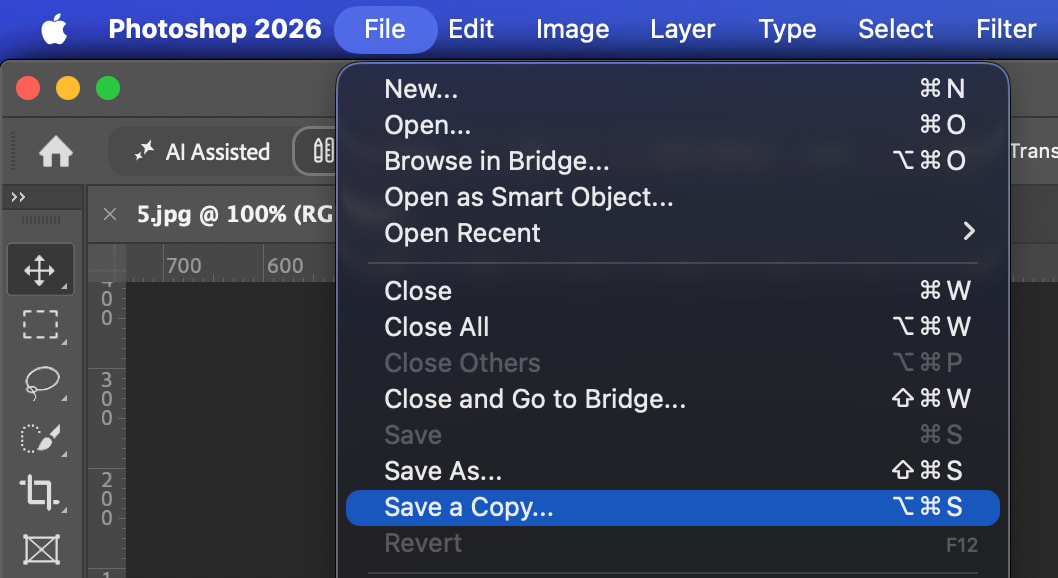
File > Save a Copy in Photoshop 2026. Use this when you need a JPEG or PNG and the layered file should stay open.
Adobe's own wording is the rule of thumb: the copy is saved, and the original document remains open and unchanged.
A quick check before you pick a command: if losing layers would ruin the job, do not use Save As for JPEG. Save the PSD first, then Save a Copy.
If You Opened Save As by Habit
Muscle memory still goes to Save As. You do not have to cancel.
- Choose File > Save As as usual.
- If JPEG, PNG, or another delivery format is missing, click Save a Copy in that dialog.
- Pick the format, set quality, and save. The layered file stays the active document.
That in-dialog switch is still the fastest recovery in 2026, as photographers keep asking why Save As will not make a JPEG.
If you prefer the old combined dialog every time:
- Open Preferences > File Handling (Edit on Windows, Photoshop menu on Mac).
- Turn on Enable legacy "Save As".
- Confirm the overwrite warning on Mac.
- Optionally turn on Do not append "copy" to filename when saving a copy on Windows.
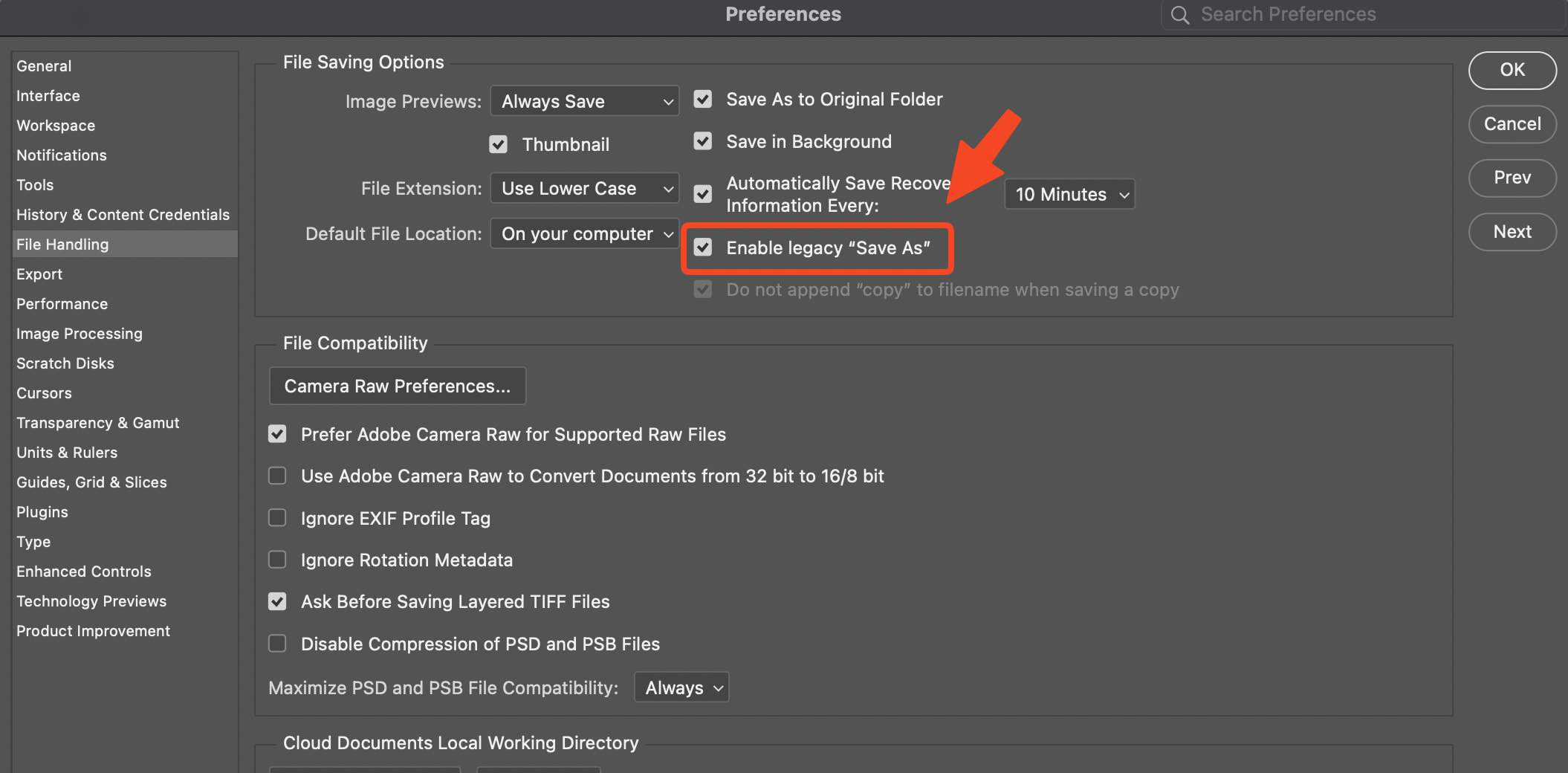
Preferences > File Handling: Enable legacy "Save As" restores the older dialog. On Mac, "Do not append copy" turns on with it.
Legacy mode brings JPEG back to Save As, but it also brings back the risk Adobe tried to remove. If you save a JPEG this way, confirm you still have a layered PSD open before you keep retouching.
To trim the format list itself, recent Photoshop releases (including 27.10) add Edit > Customize Save Dialog File Formats. Hide formats you never use (PCX, IFF, and similar) so Save As and Save a Copy stop scrolling past dead options. That does not add codecs. It only shortens the list.
Save a Copy is also not Export As. Use File > Export > Export As when you need to scale, convert to sRGB, or set metadata in the same pass. Use Save a Copy when the pixel size is already right and you just need a JPEG or PNG next to the PSD.
Put Save and Export at the End of Your Order
The confusion is not that the commands are hard. It is that they sit in different File menu spots, and the last step of a job is the one you skip under time pressure. A typical delivery tail looks like: save the PSD, Save a Copy as JPEG, maybe Export As for a resized web version.
Configurator Reloaded 2 lets you drag those File menu commands into a custom panel in that sequence, so the next save is waiting instead of hunted.
Drag File menu commands into the plugin so save-the-master and save-the-JPEG sit in the same order you actually finish a job.
If you still lose the JPEG step on volume work, the panel order is doing the reminder that a buried File menu never will. Put the master save first, the copy second, and export last, then stop navigating when the image is already done.
When the File menu split slows you down, keep the layered file on Save As and send JPEGs through Save a Copy. Try Configurator Reloaded if you want those two commands sitting in your edit order instead of two different File submenu trips every time.