Photoshop Dynamic Layer: Pick the In-Between Frame
You generated a winter version of a photo and the full AI result is too snowy, or a night conversion that went too dark. Re-prompting burns credits and still hands you one more all-or-nothing frame. Photoshop Dynamic Layer in Beta 27.11 lets you scrub from the original to that generated look and stop at the in-between you actually want.
Photoshop 27.11 Beta Has It, 27.10 Does Not
Dynamic Layer is not in the Photoshop 27.10 release. That shipping build already has Prompt to Edit in the Contextual Task Bar, plus Markup in the AI Assisted Editor. The slider that interpolates between your starting image and a generated result lives in Photoshop (Beta) 27.11.
Do not confuse it with Dynamic Text from 27.10. Dynamic Text reflows type on shapes and paths. A Dynamic Layer is a generated edit you can scrub like a timeline.
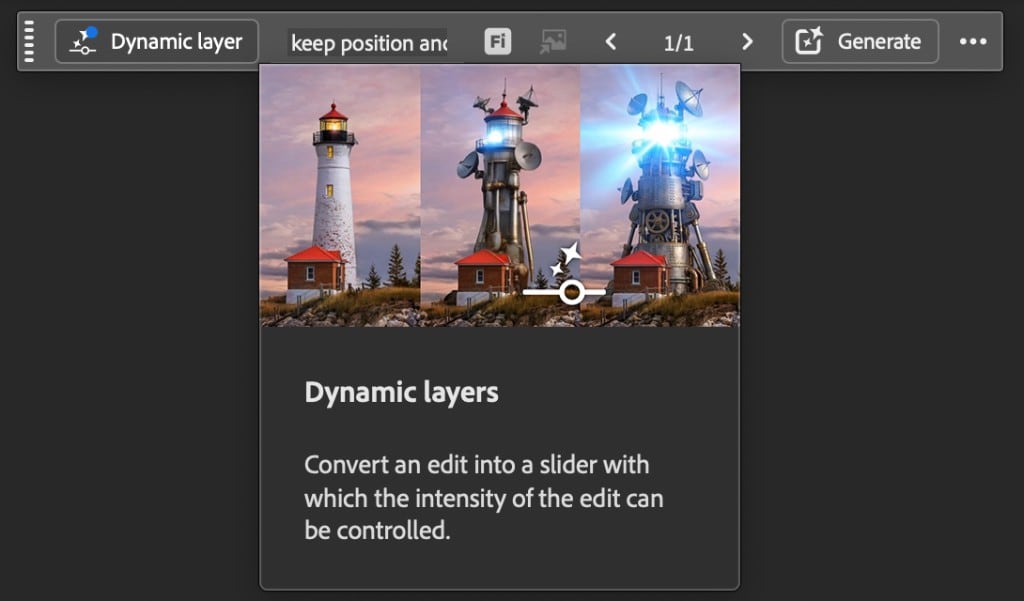
Photoshop's Dynamic Layer coach mark: convert a generated edit into a slider that controls intensity.
Create a Dynamic Layer From Prompt to Edit
Adobe's steps for a Dynamic Layer start with a whole-image Prompt to Edit, then convert the result. Conversion usually takes one to three minutes and uses generative credits.
- Open an image and select a pixel layer or a generative layer. If it is a generative layer, select the whole image. That selection is one end of the slider.
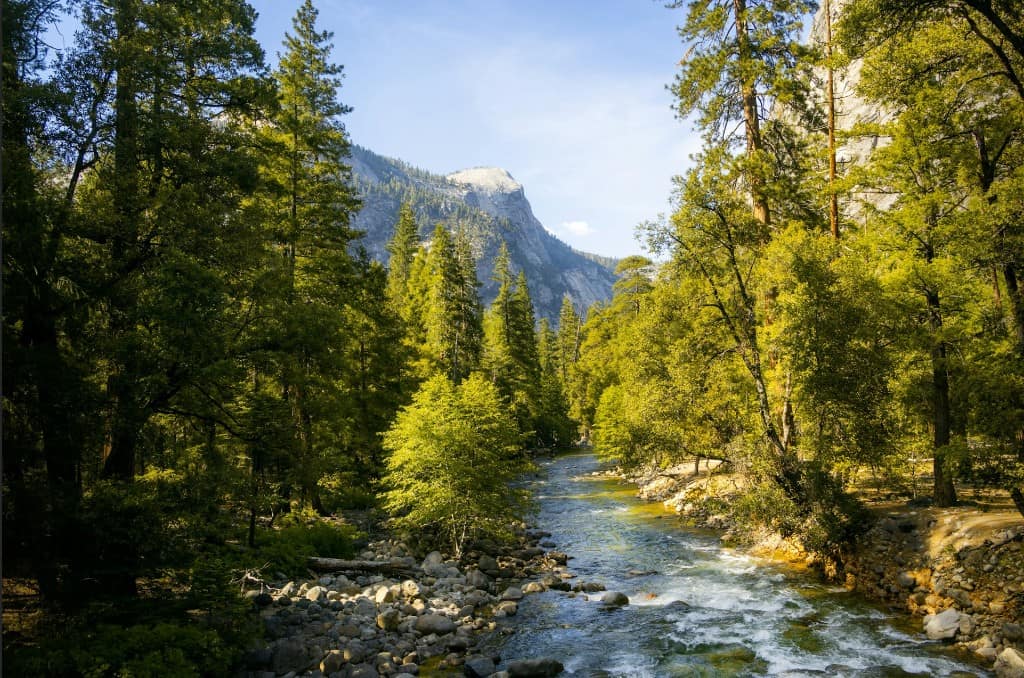
Starting landscape before Prompt to Edit. The snow prompt should keep this composition and only change the season.
- Open Prompt to Edit from Edit > Prompt to Edit, or from the Contextual Task Bar. If the task bar is missing, right-click just off the canvas and use the show/hide option.
- Write a prompt that changes one quality while keeping the rest of the frame. Two prompts that work well: "keep the position of everything, but add snow" and a follow-up that turns the same scene to nighttime. Pick a model and generate.
- Compare before and after. When the generated look is the direction you want, even if it is too strong, click Dynamic Layer on the task bar.
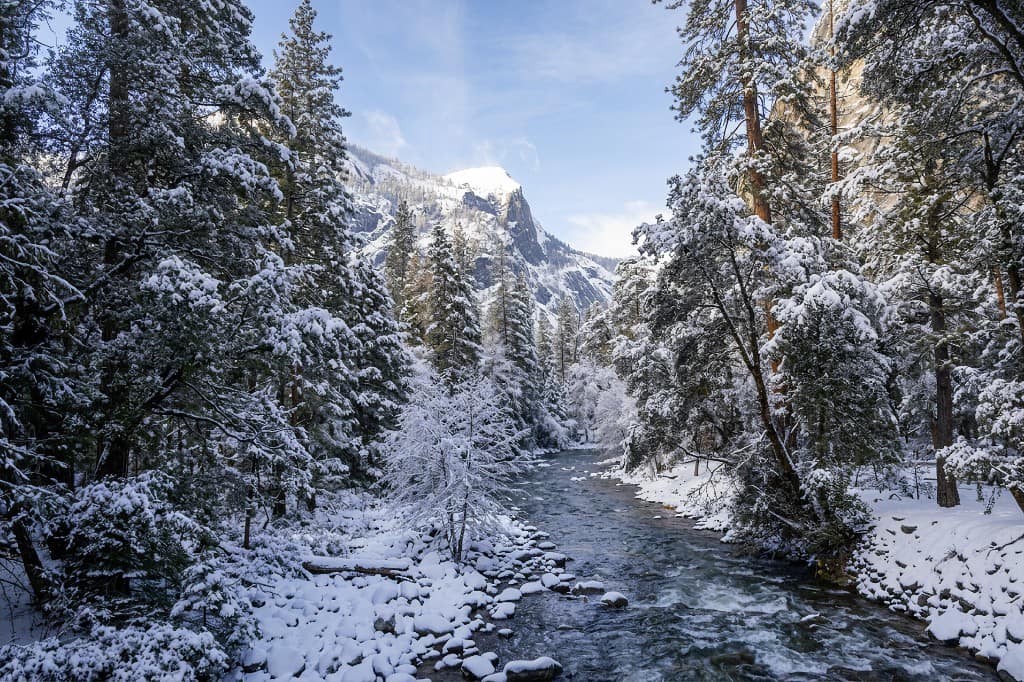
Full generated winter look from Add snow. This is the far end of the Dynamic Layer range, usually too much snow to keep as-is.
- Wait for conversion. The layer thumbnail uses a slightly different icon than a normal pixel or generative layer.
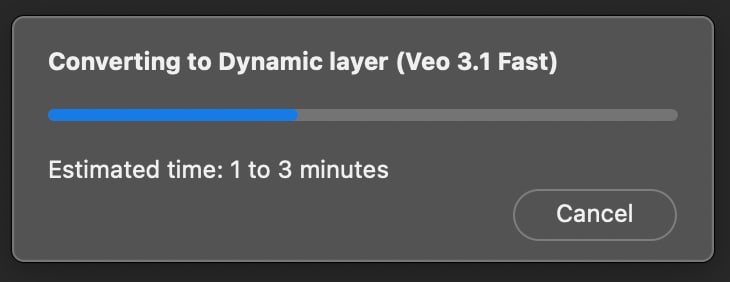
Photoshop converting the generated edit to a Dynamic Layer with Veo 3.1 Fast. Budget one to three minutes.
The original is one end of the range. The Prompt to Edit result is the other. You are not regenerating a new look at every tick. You are moving through in-between states of that pair.
Scrub Snow, Night, or Any In-Between Look
After conversion, drag the slider in the Properties panel or the Contextual Task Bar.
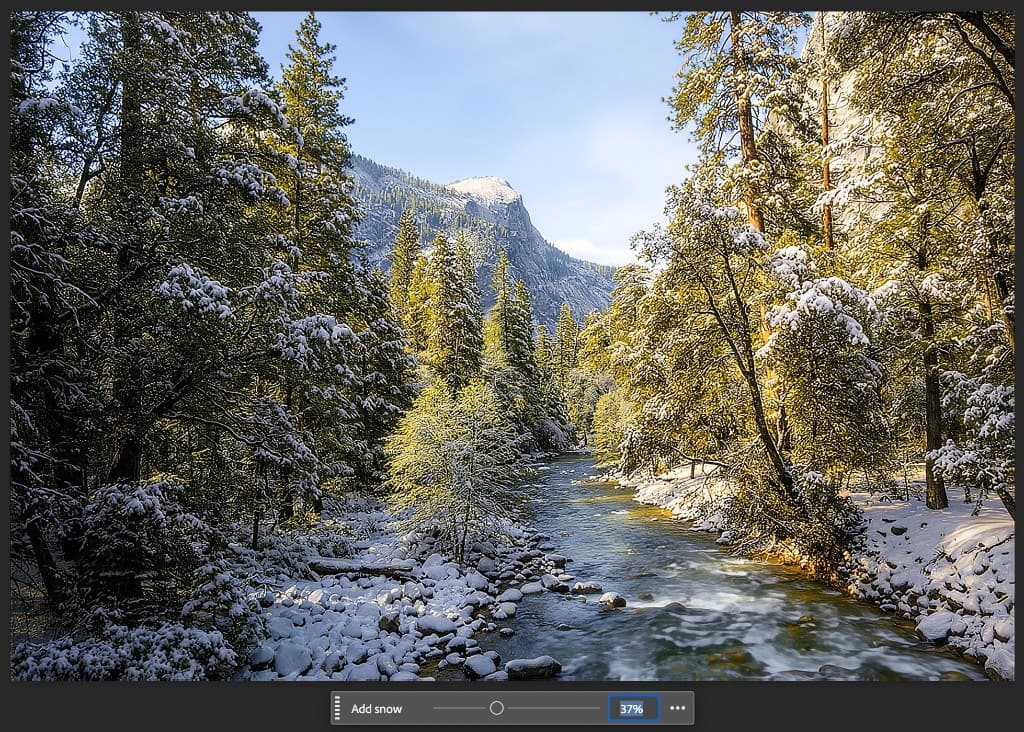
Dynamic Layer slider at 37% on an Add snow edit in the Contextual Task Bar. Stop here if the full winter frame is too much.
- Snow: Full winter on the far end, a light dusting somewhere in the middle. Stop where the scene still reads as the same place.
- Day to night: Daylight on the left, night on the right. Treat it like a time lapse of one AI change, not a real captured sequence.
- Other one-axis edits: Recolor a car, add weather, shift season. The prompt should ask for the same composition with one change. If the model moves objects, the in-betweens get harder to use.
In-betweens are generated estimates. A night conversion may read a tree line as sky and start filling it. That often looks worse at the extremes. Slide toward the middle until the mistake is no longer obvious, then keep that frame.
Keep the Frame You Want
When the slider lands on a look you would actually deliver:
- Stay on that slider position.
- Duplicate the Dynamic Layer as a pixel layer.
- Retouch, mask, or export that pixel layer like any other image.
You can still move the Dynamic Layer slider later. The pixel duplicate is a snapshot, so you are not stuck with a live interpolation when you need a file a client can open in 27.10.
Limits You Should Expect in Beta
Dynamic Layer is a beta generative feature. Plan around these constraints:
- Credits: Adobe treats Markup and Dynamic Layer like other generative tools. The conversion and the in-between states consume generative credits.
- Time: Budget one to three minutes for the conversion itself, on top of the first Prompt to Edit.
- Quality: The slider is not optical interpolation. Edges, skies, and fine detail can smear or invent structure, especially on large weather or lighting changes.
- Availability: If you only launch Photoshop 27.10, you will not see Dynamic Layer. Confirm Help > About Photoshop (Windows) or Photoshop (Beta) in the Mac menu bar.
Use it to choose intensity, then finish the file with the tools you already trust: masks, curves, clone work, and export.
Get Photoshop Beta Without Replacing 27.10
You need an active Creative Cloud plan.
- Open the Creative Cloud desktop app.
- Open the Beta apps tab (not the regular Apps list).
- Install Photoshop (Beta).
- Launch the beta from that same Beta apps list so you do not open 27.10 by habit.
Keep production files in the release app until you are happy with a flattened or pixel-duplicated result.
Keep Prompt to Edit One Click Away
Prompt to Edit and Dynamic Layer live on the Contextual Task Bar and under Edit. That is the same navigation tax as Unsharp Mask or Liquify: you already know the command, and you still hunt for it between generations.
Configurator Reloaded 2 puts those commands in one ordered panel so they sit in your sequence instead of in a task bar you keep showing and hiding. Use Command Search to find Prompt to Edit by name, run it, then pin it next to your generate, mask, and export buttons. Daily tools get pinned. Occasional ones stay a search away.
Separate workspaces in the plugin let you keep a Prompt to Edit layout for beta experiments and a different order for retouch and export.
When the in-between frame is chosen, the remaining work is still navigation: masks, curves, sharpen, save. Try Configurator Reloaded if you want those steps waiting in your order instead of scattered across menus while Adobe finishes the beta.
Sources
Feature behavior can change while this stays in beta. Details above follow Adobe's current write-ups and a desktop demo of the 27.11 slider:
- Create a Dynamic Layer from a generated edit, Adobe HelpX
- Prompt to Edit, now with Markup and Dynamic Layer (Beta), Adobe Community
- What's New in Photoshop Beta (July 2026), Adobe Community
- New Photoshop innovations, Adobe Blog (27.10 Prompt to Edit in the release app)