Photoshop AI Assisted vs Pro Editor
You opened a file in Photoshop 2026 (27.10.0) and the options bar now asks you to pick Photoshop AI Assisted vs Pro Editor. That toggle is not two equal workspaces. AI Assisted is a Firefly-style prompt mode that works on a flattened copy. Pro Editor is the layer stack you already know.
Photoshop AI Assisted vs Pro Editor at a Glance
Use this as the decision, then ignore the toggle until the job actually needs a prompt pass.
| AI Assisted Editor (Beta) | Pro Editor | |
|---|---|---|
| What it is | A simplified, prompt-based workspace inside Photoshop, built around Firefly tools | Classic Photoshop: layers, toolbar, panels, masks, and the commands you already use |
| Layers | Photoshop makes a flattened copy for prompt edits. Your original stack stays put. | Full layer stack. Coming back from AI Assisted pastes the latest edit as a new generative layer. |
| Best for | Exploring a look, markup-driven composites, quick remove / expand / upscale | Retouching, masks, color, print, anything you must unpick later |
| Stay here if | You want a conversation with the image before you spend hours in the stack | The file already has work in it, or you only need one Prompt to Edit on the current layer |
Adobe's own help is blunt about the round trip: moving from Pro Editor to AI Assisted flattens the document for compatibility. Switching back adds the latest AI Assisted edit as a new layer, so you can keep working.
If you only need a whole-image prompt and you want to keep finishing in the same workspace, stay in Pro Editor and use Prompt to Edit from the Contextual Task Bar. You do not have to leave Pro Editor for every generative change.
Turn On the Toggle Without Getting Lost
AI Assisted Editor shipped as a beta in Photoshop 27.10.0. Existing users do not always see it until the preference is on.
- Save the PSD in Pro Editor first. Do this before any switch.
- On Mac, open Photoshop > Preferences > Interface and turn on Show AI Assisted Editor. On Windows, that path is Edit > Preferences > Interface.
- You can also open it from Window > AI Assisted Editor.
- Click AI Assisted in the top-left toggle. Pro Editor stays highlighted while you are in the classic workspace.
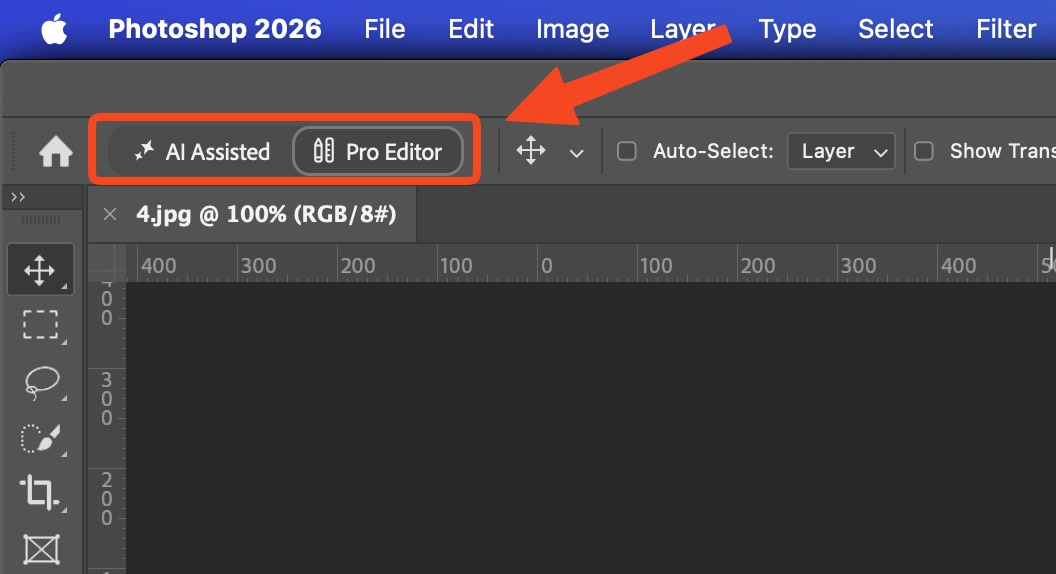
Photoshop 2026 options bar: AI Assisted vs Pro Editor. Pro Editor is selected until you click AI Assisted.
Eligible new users may get a welcome screen and a Get started button instead of landing in Pro Editor. Either path ends at the same toggle.
When you leave Pro Editor, Photoshop warns that it is creating a flattened copy for prompt-based edits, and that your original file and layers are not affected. Read that dialog. It is the whole risk in one sentence.
What You Can Do in AI Assisted Mode
The left toolbar is not the Photoshop toolbar. It is a short list of generative jobs.
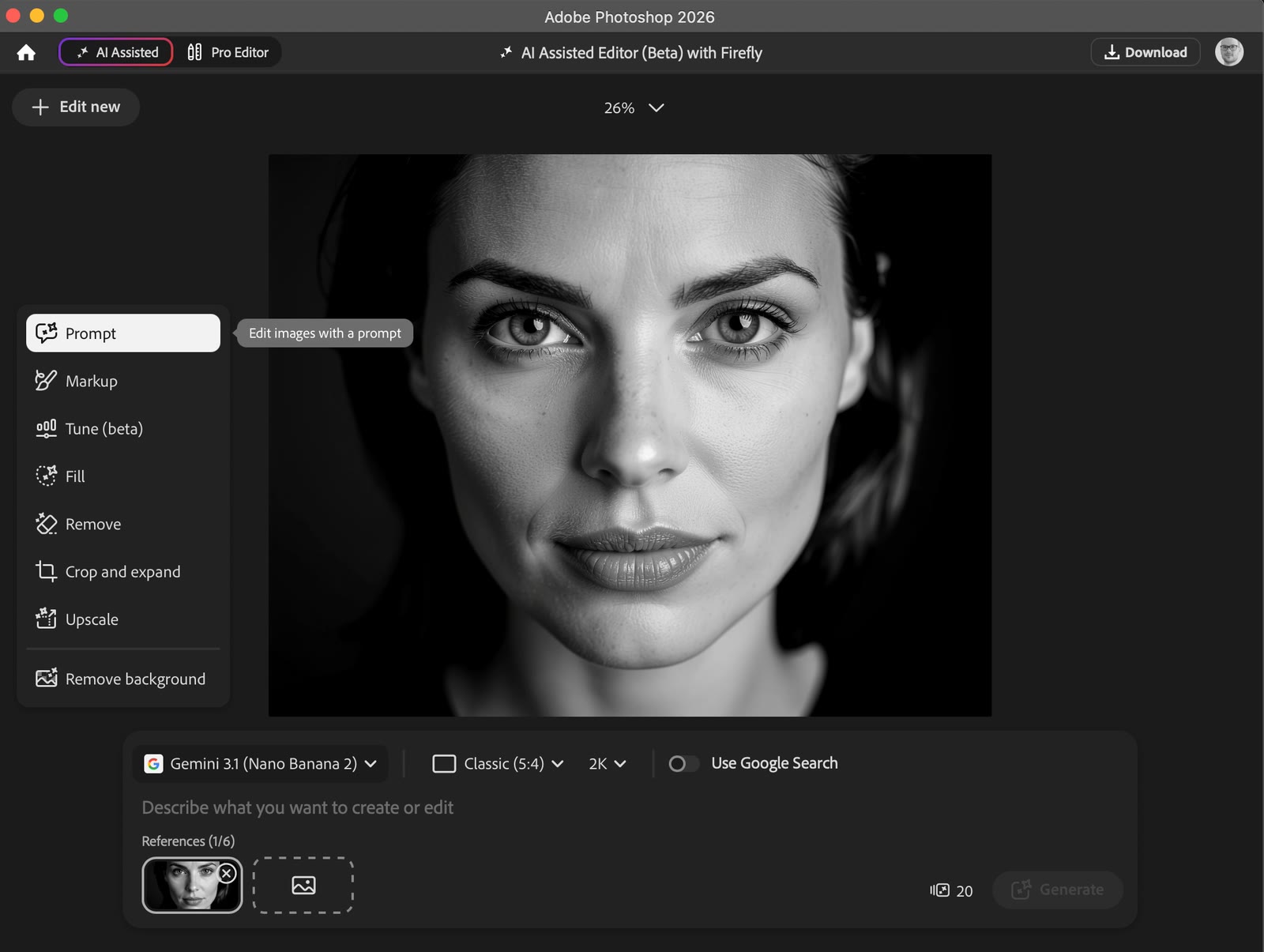
AI Assisted Editor (Beta) with Firefly in Photoshop 2026. Prompt is selected. The credit cost sits next to Generate.
Work through the tools in the order you actually need them:
- Prompt. Type the change, pick a model and size in the bar, then Generate. Use this to explore a direction, not to finish a client file. The bar shows the generative credit cost before you commit.
- Markup. Brush, type, draw a region, or drop a reference image, then generate all of those notes in one pass. This is the fastest way to say "dragon here, person on the ladder, product there" without building a composite yet.
- Tune (beta). Restyle the whole image and pull an intensity slider back if the first result went too far. Adobe's Office Hours demo also showed Tune shrinking pixel size, so plan an Upscale after a heavy Tune if the file needs to stay large.
- Fill. Add or replace a selected area, similar to generative fill.
- Remove. Paint over the object and let the model rebuild the background.
- Crop and expand. Change the frame, then expand the edges instead of cropping in.
- Upscale. Restore size and detail after a generative pass.
- Remove background. Isolate the subject without hunting Select and Mask first.
Start from Open, cloud storage, Create new canvas, or a suggested job such as Restyle or Edit with markup. You can jump back to Pro Editor at any time. The latest AI Assisted result comes with you as a new layer, so you can Harmonize lighting, replace a warped logo, or mask the bits that have to stay accurate.
Treat AI Assisted as a sketch and sign-off pass. Adobe's Office Hours team used it that way: explore the composite, then open Pro Editor and rebuild the bits that have to be accurate.
What Flattening Means When You Switch
The scary part of Photoshop AI Assisted vs Pro Editor is not the prompt bar. It is the copy Photoshop makes so the prompt tools can run.
When you switch Pro Editor to AI Assisted:
- Photoshop flattens a copy for the prompt workspace.
- The original layered document is not rewritten.
- You are no longer editing individual layers, groups, or smart objects inside AI Assisted.
When you switch AI Assisted to Pro Editor:
- The latest AI Assisted edit lands as a new generative layer.
- Earlier Pro Editor layers are still there under that result.
- Aspect-ratio changes can alter the canvas. If the image looks letterboxed, double-click it and reposition before you keep retouching.
A safe loop for a real job:
- Finish or checkpoint the layered file in Pro Editor. Save.
- Switch to AI Assisted only for the prompt, markup, or expand you cannot get faster another way.
- Generate, then switch back.
- Mask, blend, or replace pieces of that new layer in Pro Editor. Do not bounce back into AI Assisted in the middle of a generation.
- Export from Pro Editor.
If the file is already a 40-layer retouch, do not "just try" AI Assisted on it for a tiny cleanup. Stay in Pro Editor and use Remove, Generative Fill, or Prompt to Edit on the current layer.
Finish in Pro Editor Without Hunting Menus
The toggle only solves the prompt half of the session. After the new generative layer lands, you still need Harmonize, layer masks, Curves, and export, and those commands still live in five different places.
Configurator Reloaded 2 puts those finishing commands in one panel, in the order you actually run a job. Drag Harmonize, masks, and Save a Copy into a sequence so the next step is waiting instead of hunted. Use Command Search once to find Prompt to Edit, run it from Pro Editor when a full AI Assisted session is overkill, then pin it next to the retouch group.
Keep two layouts if the work splits: one workspace for a short prompt experiment, another for retouch and delivery. Switch in two clicks so AI tools and export buttons are not fighting for the same screen.
When the Firefly-style pass is done, the remaining time is still navigation. Try Configurator Reloaded if you want the Pro Editor half of the toggle to stop sending you back through menus.
Sources
AI Assisted Editor is still in beta. Tool names, models, and credit costs can change. Details above follow Adobe's current desktop help, the 27.10 announcement, and public demos of the toggle:
- Use AI Assisted Editor, Adobe HelpX (updated 28 Aug 2026)
- Meet Photoshop's AI Assisted Editor (Beta), Adobe Community
- What's New in Photoshop, Adobe Office Hours, YouTube
- Who is Photoshop for now? (update 27.10.0), YouTube (flatten-copy dialog and Pro Editor round trip)