Search Photoshop Menus Like a Command Palette
You remember what a command is called, or a word in its name, but not whether it lives under Image, Layer, or Filter. Every time that happens, nested menus waste time and break focus. A command-palette style habit fixes that: one search field, a few keystrokes, then run.
Why Nested Menus Break Your Flow
Photoshop packs thousands of commands into deep trees. That is fine when you are learning, but painful when you already know what you want. Each wrong submenu is a context switch. You stop thinking about the edit and start playing UI archaeology.
Training yourself to search Photoshop menus by keyword instead of path keeps attention on the image. You think in outcomes, "high pass", "apply image", "sky replacement", not in breadcrumbs.
Build a Search-First Habit
Before you reach for the mouse, try this pattern:
- Name the operation in plain language, even if it is only a fragment.
- Open your command search surface and type that fragment.
- Use arrow keys to highlight the right row, then confirm with Enter.
Partial matches beat perfect memory. Refresh indexes when you install brushes, load new actions, or change menus, so results stay accurate.
One Palette for Menus, Actions, Tools, and More
Native layouts vary by version, but the underlying problem stays the same: search Photoshop menu commands quickly without memorizing paths. A dedicated palette helps when it pulls more than menus into the same list. Configurator Reloaded 2 adds Command Search: type to narrow results from Photoshop menus, actions, brushes, tool presets, and tools, plus workflow scripts and Script Editor scripts, then run a match or add it as a button on a panel. Details and access options are on the Command Search page.
Command Search in Configurator Reloaded 2 narrows matches as you type so you can run a menu command or add it to a panel without hunting the menu bar.
Open It Like a Real Shortcut
For daily use, assign a global Photoshop shortcut so the palette opens from anywhere. The plugin ships a helper workflow for that on the Command Search keyboard shortcut page. You can also click the magnifying glass on the bottom right of a Configurator panel, or use Plugins → Configurator Reloaded 2 → CR2 Command Search from the menu bar.
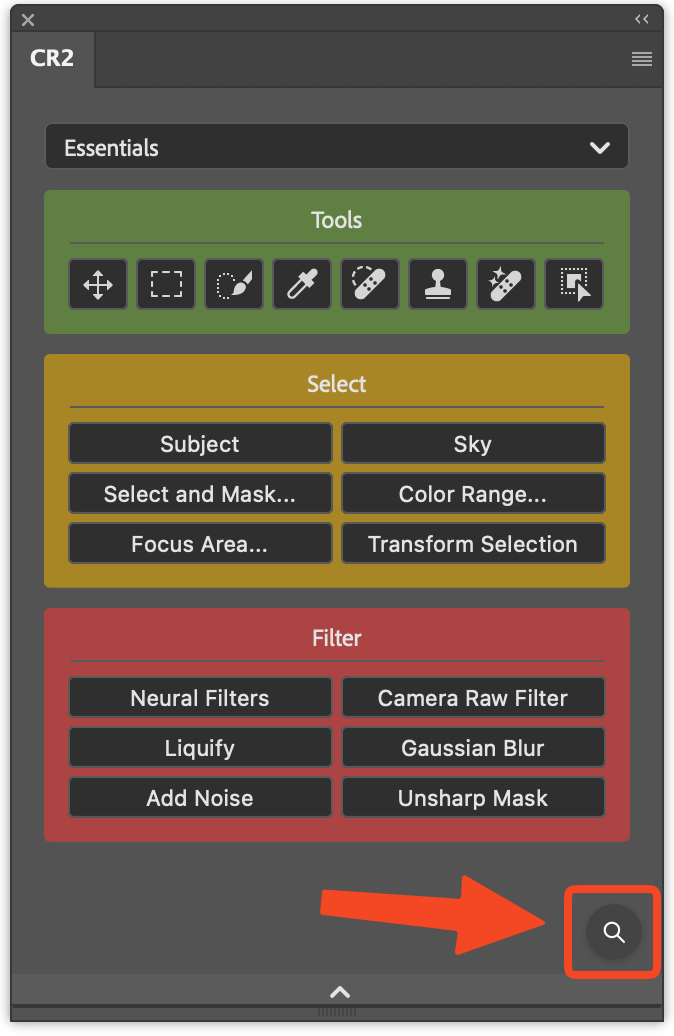
The footer search icon in the plugin opens Command Search without leaving your panel layout.
If you want fewer menus and a single place to type what you need, try Configurator Reloaded and wire Command Search into your muscle memory.