Photoshop Productivity for Faster Editing
Photoshop productivity usually breaks down in the same place: too many clicks for work you repeat every day. If your editing feels slower than it should, the fix is often not a new technique, it is a cleaner system for tools, actions, and multi-step setups.
Put Your Most-Used Tools in One Place
The default Photoshop workspace is built for general use, not for your specific editing routine. The more often you bounce between menus, hidden panels, and scattered actions, the more time you lose on every file.
Start by grouping only the things you reach for constantly. A retouching setup might keep healing tools, masks, and cleanup actions together. A delivery setup might keep export commands, resize actions, and sharpening controls together. Simple grouping does more for Photoshop productivity than memorizing another shortcut you will forget next week.
Turn Repeatable Edits Into Actions
Actions are still one of the fastest ways to save time in Photoshop. If you resize, sharpen, convert color space, or export in the same order again and again, record that sequence once and replay it with one click.
The best actions are boring and predictable. Start with steps that almost never change, then leave creative decisions outside the recording. That keeps the action useful instead of brittle.
Build a Workflow That Still Works on Busy Days
A productive setup is not only about automation, it is about access. When actions, scripts, and tools live in one dockable panel, you spend less time switching context and more time finishing the job in front of you.
Custom panels in Configurator Reloaded 2 keep tools, actions, and workflow scripts together, so your faster process stays visible while you edit.
Use Scripts for Setup Work You Hate Rebuilding
Some routines are too long or too error-prone for manual setup. Frequency separation, luminosity masks, dodge and burn layers, and high pass sharpening are all common examples.
Configurator Reloaded 2 is a Photoshop plugin that helps here in two ways: it includes built-in workflow scripts for repeated setups, and it gives you a Script Editor for writing your own ExtendScript or UXP helpers when a stock action is not enough.
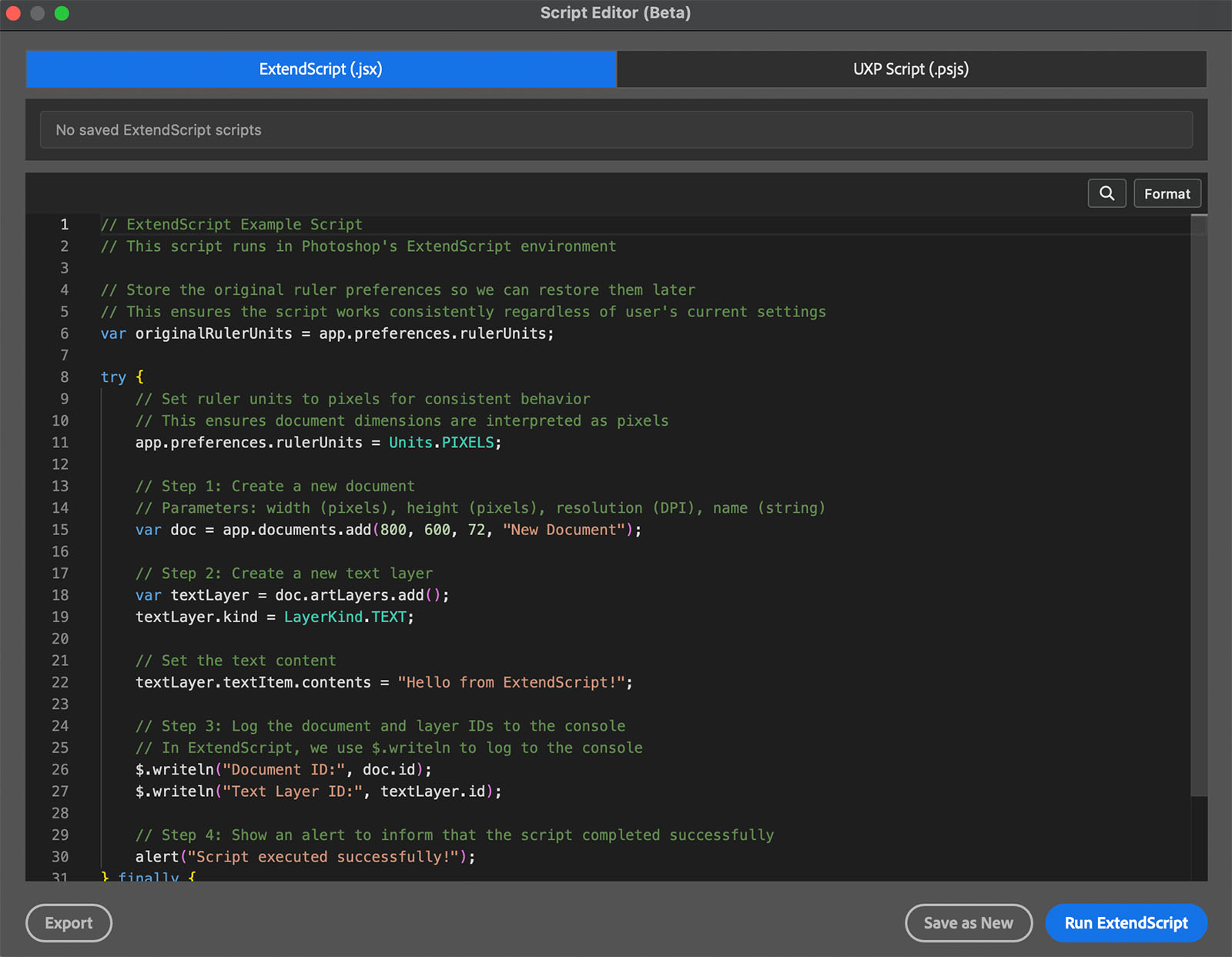
The Script Editor in Configurator Reloaded 2 lets you write and run Photoshop scripts without leaving your workspace, which is useful when an action alone is not flexible enough.
The best productivity gains in Photoshop come from removing friction you feel every day. If you want a faster way to organize tools, trigger scripts, and keep recurring tasks in one place, try Configurator Reloaded 2 and build a setup that matches how you actually work.