Photoshop Actions vs Scripts: Pick the Right Tool
If you are not sure whether to record a Photoshop action or write a script, you are asking the right question. The two overlap in what they automate, but they behave very differently once a job gets messy, conditional, or one step away from the same menu path every time.
When Photoshop Actions Are the Better Choice
Actions shine when the steps are visible, repeatable, and almost always in the same order. Photoshop records what you click and plays it back on demand or through Batch.
Reach for actions when you:
- resize, sharpen, or export with the same settings often
- apply a fixed adjustment stack or filter chain
- need something non-technical teammates can tweak by re-recording a segment
- want a simple path into
File > Automate > Batchfor folders of files
Keep each action focused. Short actions are easier to debug when a dialog changes or a menu moves. If one branch of the job needs a different path, that is usually a sign to split into two actions or move the branching to a script.
When Photoshop Scripts Are the Better Choice
Scripts are code. They can read values, show dialogs, loop over layers, and build structures that would be painful to fake with recorded clicks.
Use scripts when you:
- need if/then logic (for example, skip a step when there is no background layer)
- create complex layer stacks, channels, or masks from rules, not a fixed recording
- call APIs or features that do not record cleanly into actions
- want one tool that adapts to document size, bit depth, or selection state
Scripts still live in your workflow as files you run from File > Scripts or attach to panels and shortcuts. The edit-run loop is the main tradeoff: you think like a programmer for a moment, but you gain flexibility actions cannot match.
Combine Actions and Scripts on Purpose
You do not have to pick only one. Many studios record an action that runs a script step, or use a script to call actions by name when the high-level flow is stable but one piece needs code.
A practical pattern looks like this:
- Put unpredictable or setup-heavy work in a script (layer generation, cleanup, conditional steps).
- Record an action for the boring, identical tail (export, profile conversion, save for web).
- Test on copies until the sequence survives real files.
That split keeps scripts small and actions readable.
Keep Actions and Scripts Where You Actually Click
Automation fails when it is buried. If actions live in the Actions panel, scripts in a scripts folder, and your favorite commands in menus, you still lose time hunting.
Configurator Reloaded 2 is a Photoshop plugin for building custom panels: you drag and drop tools, menu items, actions, and scripts into up to three dockable panels and switch workspaces for different jobs. After you name the product once, you can drop both actions and scripts beside each other so the choice between them is not a separate hunt every time.
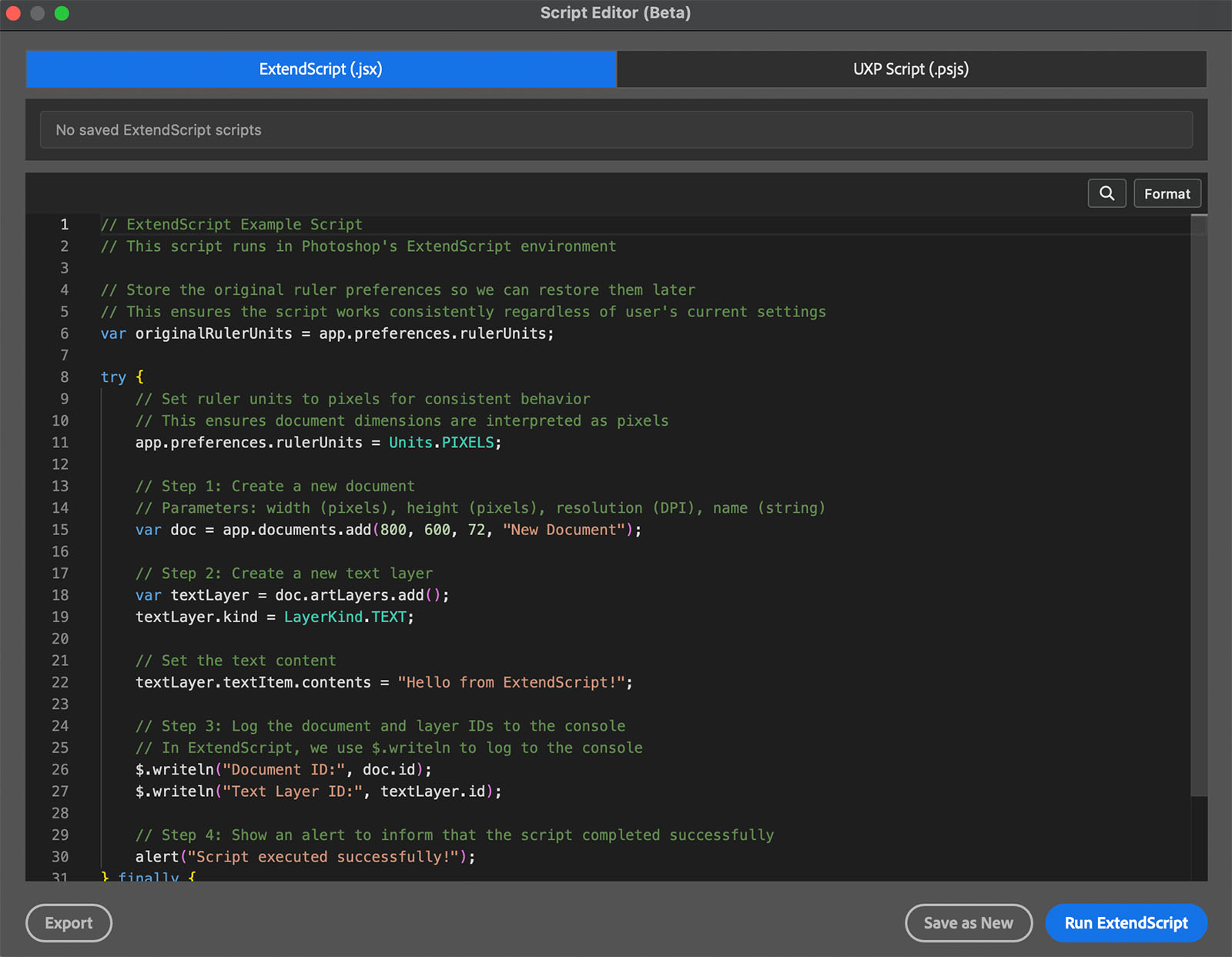
The Script Editor in Configurator Reloaded 2 keeps ExtendScript and UXP in one place when your work tips toward scripts instead of recording.
For setup-heavy steps you do not want to code yourself, the plugin also includes built-in workflow scripts for tasks like frequency separation, luminosity masks, dodge and burn setups, and high-pass sharpening. Those are ready-made scripts you trigger like buttons, next to your own actions.
Drag and drop in the plugin lets you place actions, scripts, and tools in one panel layout.
Pick One Place to Start
If you are new to automation, record one short action this week. If you already hit limits, try one small script that only does one thing you understand well. After that, decide by behavior: same clicks every time favors actions, logic and structure favor scripts.
If you want actions and scripts on the same surface as the rest of your tools, try Configurator Reloaded and try it free to see how custom panels fit your mix.