10 Best Photoshop Plugins for a Faster Workflow
Choosing a Photoshop plugin should make your work faster or better, not add another panel you rarely open. This ranked list of the best Photoshop plugins focuses on tools that solve recurring problems in real editing workflows.
How We Ranked the Best Photoshop Plugins
We judged each plugin by four practical criteria: how much repetitive work it removes, how often its features are useful, how quickly a new user can benefit, and how well it fits inside Photoshop.
The 10 Best Photoshop Plugins for Daily Work
1. Configurator Reloaded 2
Best for: Building custom Photoshop panels around the way you work.
Configurator Reloaded 2 takes first place because it can improve nearly every Photoshop workflow instead of handling only one editing technique. You can create dockable panels by dragging in the tools, menu commands, actions, brush presets, tool presets, and scripts you use most. Buttons can be renamed, resized, reordered, and color-coded, so a panel can match a specific job rather than Photoshop's default organization.
A portrait retoucher might group healing tools, frequency separation, dodge and burn actions, and export commands in one workspace. An illustrator can build another for brushes, selection tools, transforms, and project actions. Up to three dockable panels and multiple workspaces make it practical to separate those jobs without rebuilding the interface.
The plugin also includes Workflow Scripts for recurring setups such as frequency separation, luminosity masks, dodge and burn layers, and high pass sharpening. These scripts are most valuable when you use the techniques regularly and want a consistent layer setup in one click.
Configurator Reloaded 2 lets you organize Photoshop tools, actions, commands, and scripts in custom panels. See how Configurator Reloaded 2 works.
Consider another option if: You only need one specialized effect. Its main benefit comes from designing and using a broader workspace.
2. DocManager
Best for: Photographers, retouchers, and designers who keep many PSD files open.
DocManager replaces tab hunting with a visual panel of document thumbnails. You can identify an image by sight, activate it, and keep track of a large set without relying on shortened filenames.
The Pro version goes beyond navigation. It can move selected layers between open documents with drag and drop, run actions on selected files, and batch tasks such as saving, closing, exporting, or pasting clipboard content. For a product shoot or campaign with many related files, selecting the affected documents once is much faster than repeating the same command in every tab.
DocManager is a Pixelsucht Photoshop plugin for navigating, selecting, and managing open documents.
Consider another option if: You usually edit only one or two documents at a time. The biggest gains appear when Photoshop's tab bar becomes crowded.
3. Retouch4me
Best for: Portrait retouchers who want AI assistance while keeping layer control.
Retouch4me provides a Photoshop panel for applying its AI retouching tools without repeatedly opening the Filter menu. Its tools target jobs such as dodge and burn, skin tone correction, backdrop cleanup, eye enhancement, and teeth whitening. Results can be returned as separate, adjustable layers, which makes it easier to reduce opacity, mask an area, or revise the result.
Use it when a portrait set needs a consistent first pass before manual refinement. The panel supports both cloud-based processing and purchased on-device plugins, so the right setup depends on whether you prefer a subscription workflow or local tools.
Consider another option if: You mainly edit landscapes, composites, or graphics. The suite is strongest when faces and portrait cleanup are central to your work.
4. Topaz Photo
Best for: Rescuing noisy, soft, small, or difficult image files.
Topaz Photo combines AI tools for denoising, sharpening, face recovery, and upscaling. It integrates with Photoshop and can return an enhanced image to your document, making it useful before detailed retouching or final output.
A practical use is preparing a high-ISO event image: reduce noise, recover useful detail, then continue color and local adjustments in Photoshop. Upscaling can also help when a client supplies an image that is too small for the intended output.
Topaz Photo replaces the discontinued Topaz Photo AI product, which no longer receives model or compatibility updates. New buyers should choose the actively maintained product rather than the legacy plugin.
Consider another option if: Your files are already clean and correctly sized. AI recovery can be unnecessary, and aggressive settings may create detail that does not look natural.
5. Nik Collection
Best for: Photographers who want a broad set of color, black and white, HDR, and finishing tools.
Nik Collection is a suite of seven creative plugins, including Color Efex, Silver Efex, Analog Efex, Viveza, Dfine, HDR Efex, and a pre-sharpening tool. You can open them from Photoshop's Plugins menu or use the Nik palette.
The collection is particularly useful when you want to explore several interpretations of an image without building each treatment manually. Converting the source layer to a Smart Object first lets you use Nik filters in a reversible workflow and return to their settings later.
Consider another option if: You prefer to build every look with native adjustment layers. A large suite can feel excessive when you only need one type of effect.
6. Luminar Neo
Best for: Quickly applying AI-assisted photo adjustments and creative looks.
Luminar Neo can run as a Photoshop plugin and provides AI-assisted tools for common enhancement and creative editing tasks. It is approachable when you want to improve an image quickly without assembling a long stack of adjustments by hand.
Use it for a broad first treatment, then return to Photoshop for detailed masks, typography, compositing, or precise layer work. The plugin is included with Luminar Neo rather than sold as a separate Photoshop-only product.
Consider another option if: You need every feature from the standalone application. Skylum notes that some newer generative tools are not available in the plugin version.
7. Lumenzia
Best for: Creating precise luminosity, color, and zone masks without manually calculating channels.
Lumenzia is a dedicated Photoshop panel for visually building and refining luminosity masks. It lets you target tones and colors directly on the image, preview the mask before applying it, and create masks for 16-bit and 32-bit workflows.
It is especially useful for high-contrast landscapes, architecture, and any edit where highlights, midtones, and shadows need different treatment. Instead of repeatedly loading channels and intersecting selections, you can create a targeted mask, output it to an adjustment layer, then refine the edit with Photoshop's native controls.
Consider another option if: You only need occasional basic masks. Lumenzia is most valuable when targeted tonal selections are a regular part of your edits.
8. Infinite Color Panel
Best for: Finding a color grade when you know the mood but not the exact adjustment recipe.
Infinite Color Panel generates customizable color grades inside Photoshop. Instead of choosing a preset pack and seeing the same fixed looks, you can explore variations, refine a promising result, and save grades you want to reuse.
This works well during the exploratory stage of a campaign or portrait. Generate several directions, compare them with the client or art director, then refine the selected grade rather than moving sliders without a clear starting point.
Consider another option if: You already have a tightly standardized color pipeline. The exploratory approach is less useful when every image must match an established adjustment stack.
9. ActionBrowser 2
Best for: Finding, organizing, and running Photoshop actions without scrolling through long action sets.
ActionBrowser 2 makes a large action library easier to use. Search by action name, sort your list, assign color labels, and mark frequently used actions as favorites, so the next action you need is easier to find than it is in Photoshop's standard Actions panel.
It is a practical choice when a studio, retoucher, or designer has accumulated many actions for exports, resize steps, layer setup, color treatments, or repetitive cleanup. Instead of remembering which set holds an action, search for it, run it, and keep the actions you use most at the top of the panel.
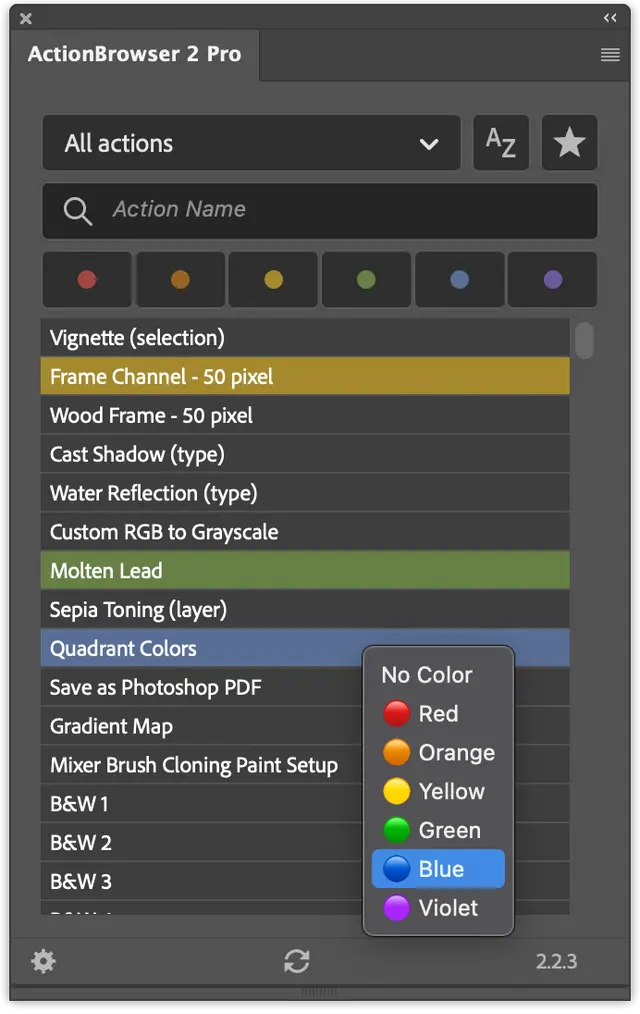
ActionBrowser 2 is a Pixelsucht Photoshop plugin that keeps large action collections searchable and organized.
Consider another option if: You use only a handful of actions and already know where each one is stored.
10. Free Stock Search
Best for: Finding free photos, vectors, and videos while you work in Photoshop.
Free Stock Search lets you search millions of free stock assets and download them to Photoshop from the same panel. It supports photos, vectors, and videos, which is useful when a layout, composite, social post, or presentation needs a supporting asset before you can finish the edit.
For example, search for a background, texture, or person, then bring a selected result into the document instead of opening a browser, saving a file, and importing it manually. That keeps asset discovery closer to the editing work.
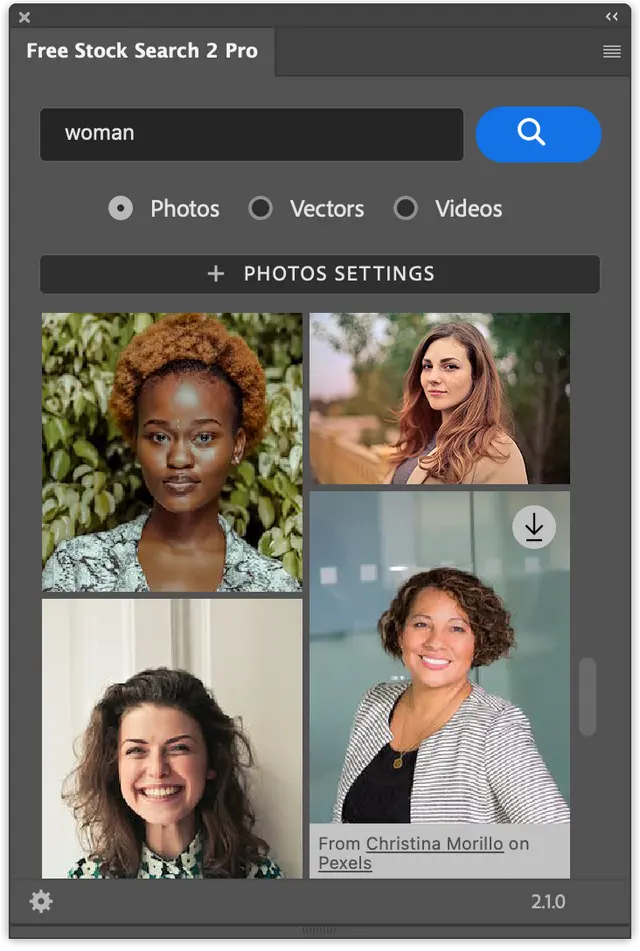
Free Stock Search is a Pixelsucht Photoshop plugin for searching and downloading free visual assets from inside Adobe apps.
Consider another option if: You work only with client-supplied or licensed assets and do not need stock content in your workflow.
Which Photoshop Plugin Should You Choose?
Start with the problem that costs you the most time:
- You constantly search menus and panels: Choose Configurator Reloaded.
- You work with many open PSD files: Choose DocManager.
- Portrait cleanup consumes your schedule: Choose Retouch4me.
- Noise, softness, or small files limit your images: Choose Topaz Photo.
- You want a varied creative toolbox: Choose Nik Collection.
- You prefer quick AI-guided edits: Choose Luminar Neo.
- You struggle to find a color direction: Choose Infinite Color Panel.
- You need targeted tonal adjustments: Choose Lumenzia.
- You have too many Photoshop actions: Choose ActionBrowser 2.
- You need free visual assets during an edit: Choose Free Stock Search.
Do not install several overlapping plugins at once. Test one against a job you already know, compare the result with your normal process, and keep it only if it saves time or produces a result you could not reach as easily.
Build a Faster Photoshop Setup
The best Photoshop plugins solve friction you encounter every week. Specialized tools can improve retouching, image recovery, color, or effects, while a workspace plugin can make all of those tools easier to reach.
If scattered tools, actions, scripts, and menu commands are the main thing slowing you down, try Configurator Reloaded 2 and build a Photoshop workspace around your actual process.