Luminosity Masks in Photoshop: A Complete Guide

Luminosity masks in Photoshop are one of the most powerful tools for landscape and portrait photographers who want precise control over tonal adjustments. Unlike simple selections, luminosity masks are based on the brightness values in your image. They let you target highlights, midtones, or shadows separately, so you can darken skies, brighten shadows, or adjust contrast in specific tonal ranges without affecting the rest of the image.

This guide explains how luminosity masks work, how to create and use them in Photoshop, and how to load them as selections. Whether you build them manually or use a script, understanding luminosity masks will give you more control over your edits.

Mountain reflected in still lake water, ideal subject for luminosity masks to target sky, water, and reflection separately

A landscape like this benefits from luminosity masks in Configurator Reloaded 2. Target the sky, water, or reflection by brightness for precise adjustments.

Photo by Zhi Sun on Unsplash.

What Are Luminosity Masks and Why Use Them?

Luminosity masks are grayscale channels that represent the brightness distribution of your image. Bright areas (highlights) appear white, dark areas (shadows) appear black, and midtones appear as gray. When you load a luminosity mask as a selection, you get a selection that is strongest where the mask is brightest and weakest where it is darkest. That means you can make adjustments that blend naturally with the image, because the selection itself follows the tonal structure of the photo.

Standard Photoshop selections (like the Magic Wand or Quick Selection) often produce hard edges or miss subtle transitions. Luminosity masks, by contrast, create smooth, feathered selections that respect the natural gradations in your image. They are especially useful for landscape photography, where you might want to darken a bright sky, recover detail in shadows, or add contrast to midtones without affecting highlights or shadows.

How Luminosity Masks Work in Photoshop

Luminosity masks are stored as channels in the Channels panel. Each channel is a grayscale image: white areas represent full selection strength, black areas represent no selection, and gray areas represent partial selection. A typical set includes channels for highlights, midtones, and shadows, often with variations like "bright highlights" or "dark shadows" for more targeted control.

To use a luminosity mask, you load it as a selection. In Photoshop, hold Cmd (Mac) or Ctrl (Windows) and click on the channel thumbnail in the Channels panel. The channel's brightness values become a selection: white areas are fully selected, black areas are not selected, and gray areas are partially selected. You can then apply a Curves adjustment, Levels, or any other edit, and the effect will be strongest where the selection is strongest.

How to Create Luminosity Masks Manually

You can build luminosity masks by hand, but the process involves several steps. Here is a simplified approach:

  1. Open your image and go to the Channels panel. Create a new channel (or duplicate an existing one).
  2. With your image visible, use Image > Calculations or load the luminosity of a layer as a selection. One common method: Ctrl/Cmd+click the RGB composite channel to load luminance, then create a new channel from that selection.
  3. Repeat for different tonal ranges. For highlights, you might invert and adjust; for shadows, you use the dark areas; for midtones, you combine or subtract channels.
  4. Name each channel clearly (e.g. "Highlights", "Midtones", "Shadows") so you can find them later.

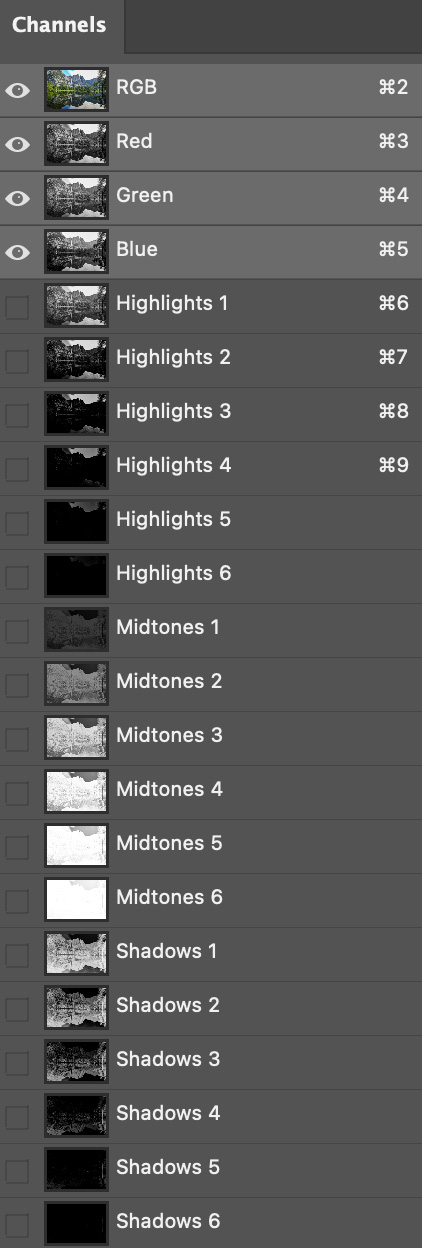
This manual process is time-consuming and easy to get wrong. Many photographers use actions or scripts to generate a full set of luminosity masks with one click. Plugins like Configurator Reloaded 2 include a built-in Luminosity Masks script that creates multiple mask channels for highlights, midtones, and shadows. The masks appear in the Channels panel. Hold Cmd/Ctrl and click a channel to load it as a selection. When you are done, a companion "Delete Luminosity Masks" script cleans up the channels.

Luminosity mask channels for highlights, midtones, and shadows in the Channels panel

The Luminosity Masks script in the plugin creates multiple channels for highlights, midtones, and shadows. Load any channel as a selection with Cmd/Ctrl+click.

Tips for Using Luminosity Masks Effectively

Start with the tonal range that needs the most work. If your sky is too bright, load the highlights mask and apply a Curves adjustment to darken. If your shadows are muddy, load the shadows mask and lift the blacks or add contrast. For overall midtone contrast, load the midtones mask and apply an S-curve.

Combine luminosity masks with layer masks for even more control. After loading a luminosity mask as a selection, create a Curves or Levels adjustment layer. The selection automatically becomes the layer mask, so your adjustment affects only the selected tonal range. You can refine the mask further by painting with black or white.

Keep your workflow non-destructive. Use adjustment layers instead of applying edits directly to the image. That way you can tweak or remove adjustments later. If you use a script to create luminosity masks, remember to run the delete script when you are done to avoid cluttering your Channels panel.

Conclusion

Luminosity masks in Photoshop give you precise control over where your edits land. By targeting highlights, midtones, and shadows separately, you can darken skies, recover shadow detail, and add contrast where it matters most. Manual creation works, but automation saves time and reduces errors.

If you want one-click luminosity masks without building the channels by hand, Configurator Reloaded 2 includes a built-in Luminosity Masks script. Add it to a custom panel and trigger it with a single click.

Previous

Build Custom Photoshop Panels Without Coding

Next

Buttons Per Row, Workflow Scripts & Live Rename Preview