Hide Container Names, Relink Scripts & Rename Dialog Improvements
September 23, 2026
Configurator Reloaded 2.3.4
Version 2.3.4 is now available with more control over container titles, an easier way to point custom script buttons at a new file, and a clearer rename dialog.
New: Hide or Show a Container Name Individually
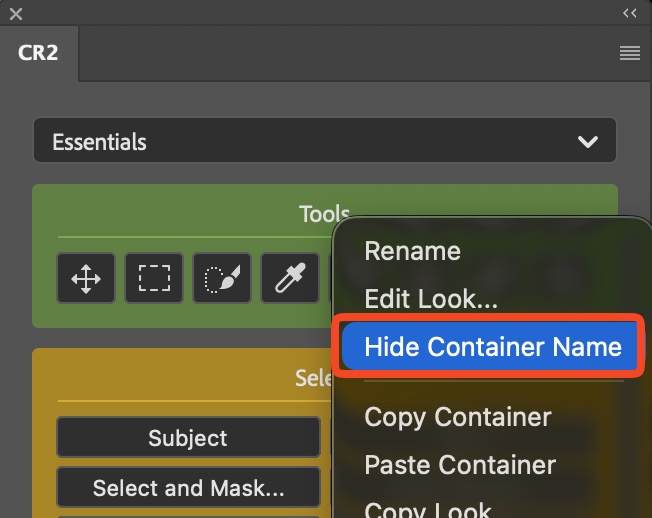
You can now hide or show a container name on its own, without changing the setting for every container. Open the container context menu and choose Hide Container Name or Show Container Name.
That makes it easier to keep a compact panel: hide the title on containers you already know by heart, and leave it visible where the name still helps you find the right group.
New: Relink a Custom Script
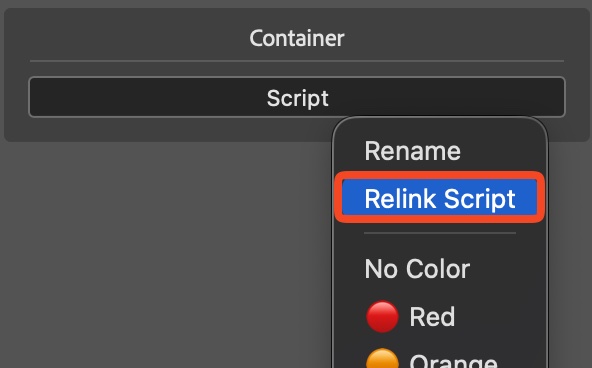
Buttons added with Add Custom Script File can now be pointed at a different script without rebuilding the button. Right-click the button and choose Relink Script, then pick the new file.
This is useful when you move a script, rename it, or swap in an updated version and want the same button, icon, and placement to keep working.
New: Light Adjustment Layer
Light is now available under Additional Commands → New Adjustment Layer (No Dialog). The command was added in Photoshop 27.10, and Configurator Reloaded can create that adjustment layer directly, without opening the dialog first.
Improved: Hidden Container Names Stay Manageable
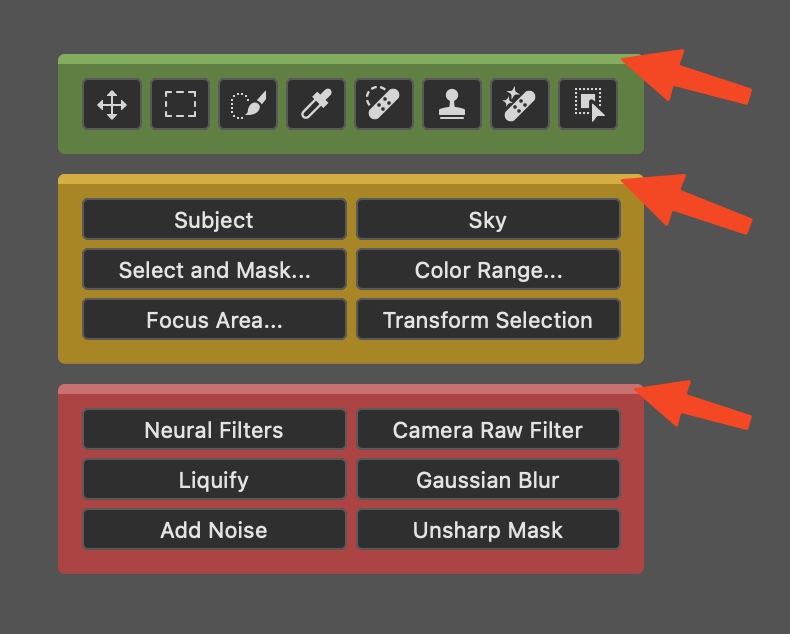
Containers with a hidden name stay fully manageable. You can still right-click and drag them as before.
A hidden name also shows a line along the top edge of the container, so you can still see where to right-click or start a drag.
Improved: Container Title Divider
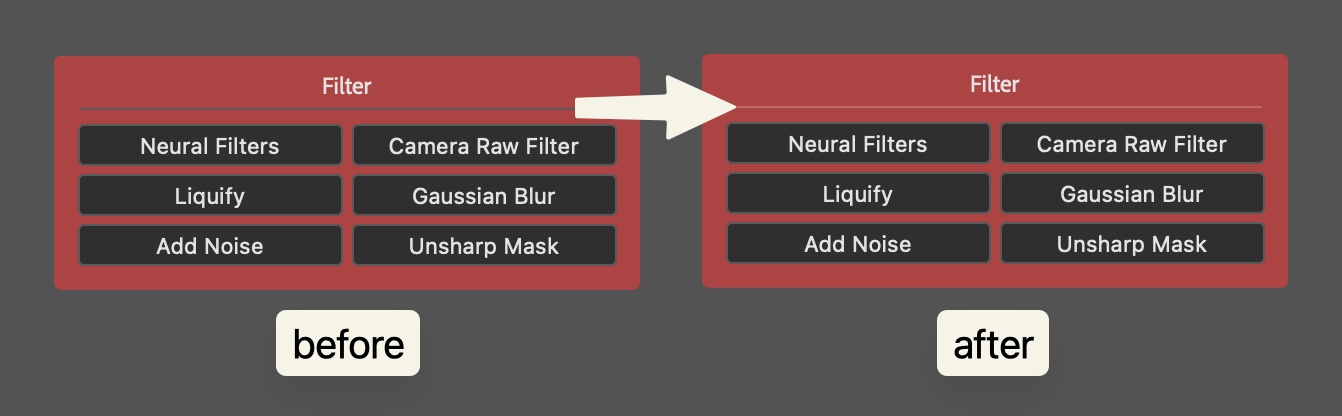
The line under container titles now takes on the container color and stays clearly visible, including on light backgrounds.
Improved: Rename Dialog
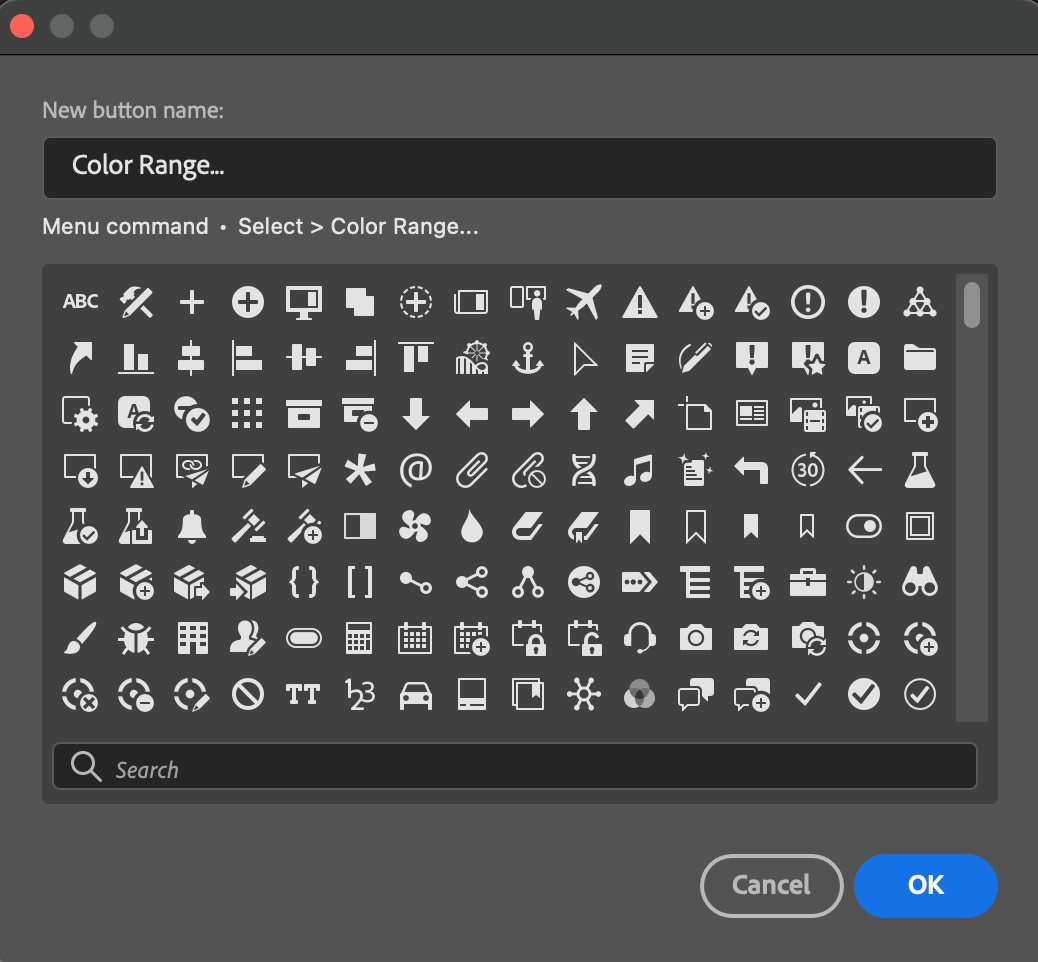
The Rename dialog now shows a button's type and the command it runs, so a custom name no longer hides what the button actually does. You can rename a button for your workflow and still see the original action behind it.
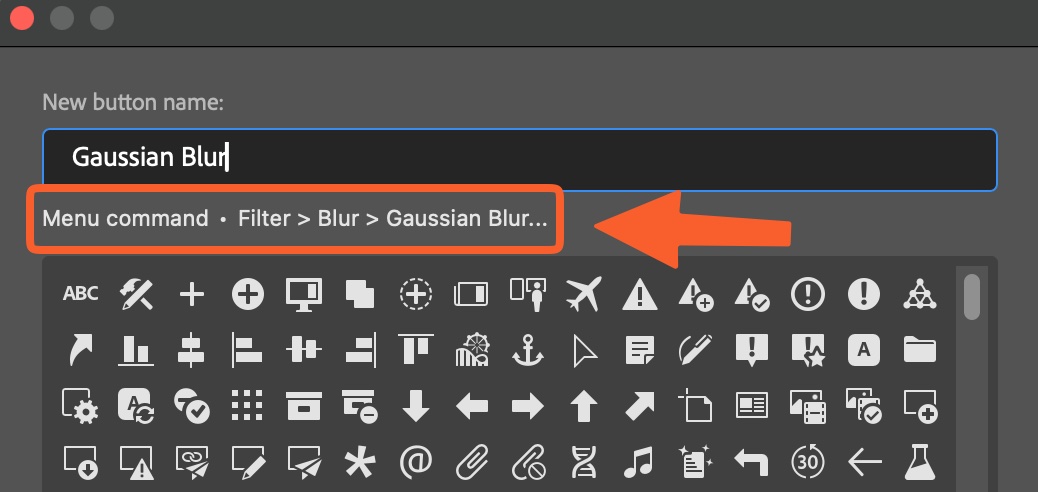
The dialog itself is larger, shows more icons at once, and lists them alphabetically, which makes a specific icon easier to find. Hovering and selecting icons is also more responsive.
Improved: Settings Sections
In Settings, hold Option (Mac) or Alt (Windows) and click a section header to expand or collapse all sections at once.
Which sections are open is now remembered after restarting Photoshop, so the dialog opens the way you left it instead of resetting every time.
Fixed: Right-Click No Longer Changes Button Style
Right-clicking a button no longer changes its style. Opening the context menu leaves the button's appearance as you set it.