Buttons Per Row, Workflow Scripts & Live Rename Preview
March 19, 2026
Configurator Reloaded 2.2.3
Version 2.2.3 is now available with the following changes:
New: Buttons Per Row
You can now define exactly how many buttons appear in each row of your containers. This gives you precise control over the layout of your panels, whether you prefer a compact 4-button row, a wider 6-button layout, or any other configuration that fits your workflow.
New: Workflow Scripts – Dodge & Burn (Gray Layer)
A new Dodge & Burn (Gray Layer) workflow script has been added to the Workflow Scripts section. It creates a neutral gray layer and applies blending modes Soft Light or Overlay for non-destructive dodging and burning. This is a classic retouching technique that lets you lighten and darken specific areas of an image by painting on the gray layer with white (to dodge) or black (to burn).
Learn more about Dodge & Burn (Gray Layer) here.
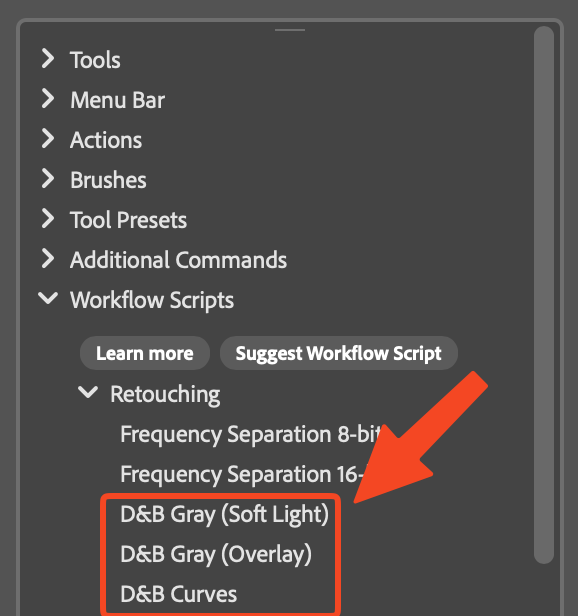
New: Workflow Scripts – Dodge & Burn (Curves)
A second dodge-and-burn variant uses Curves instead of a gray layer. The Dodge & Burn (Curves) script creates adjustment layers that give you even more control over the tonal range of your dodging and burning. This approach is ideal when you want to target specific brightness ranges: for example, affecting only midtones or highlights.
Learn more about Dodge & Burn (Curves) here.
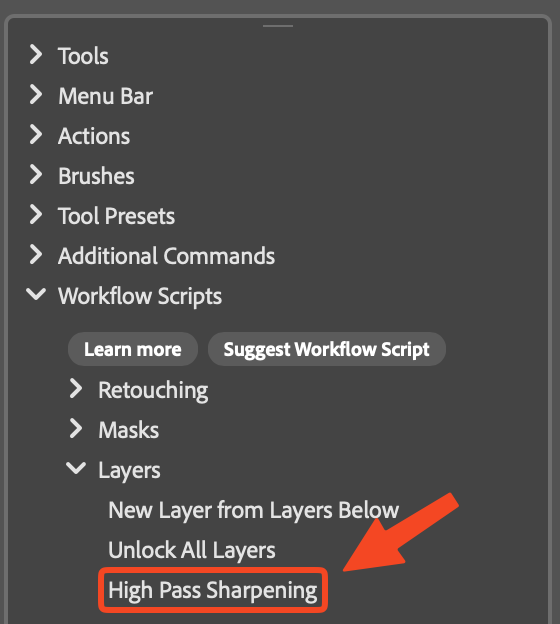
New: Workflow Scripts – High Pass Sharpening
The High Pass Sharpening workflow script automates a popular sharpening technique that enhances edge detail without over-sharpening or introducing halos. It creates a high-pass layer and blends it for a clean, professional sharpening result that works well for portraits, product shots, and general image refinement.
Learn more about High Pass Sharpening here.
Improved: Live Rename Preview
When renaming a container or button, name and icon changes are now previewed live in the panel while the rename dialog is still open. You no longer need to confirm and close the dialog to see how your changes will look. You get instant visual feedback as you type the new name or select a different icon. This makes it faster and easier to fine-tune your panel layout and naming without guesswork.
Improved: Translations
Translations have been updated and refined across the plugin for improved clarity and consistency in all supported languages.